
Customizing Colors and Branding
Your docs section doesn’t inherit your theme, since it’s a standalone layout, so branding is handled through a few dedicated settings instead.
Logo#
Go to WP Super Docs → Settings → Setup → General and find Brand. Under Logo you can set:
- Light mode: click Choose image to pick the logo from the Media Library, and Remove to clear it. It shows when the reader is in light mode, or always, if you don’t set a dark-mode logo.
- Dark mode: shown when the reader is in dark mode, if dark mode is enabled. See Light & Dark Mode.

If you don’t set a logo at all, the topbar falls back to showing your site title’s first initial in a plain badge.
Brand text#
Also under Settings → Setup → General, you can show text next to (or instead of) your logo:
- Text next to the logo: the text itself, defaulting to “Docs.”
- Turn it on or off independently of whether a logo is set. A preview next to the field shows the logo and the text together as you type.
Colors#

Go to Settings → Display → Appearance → Colors. There are two tabs, Light theme and Dark theme, each with eight colors:
- Accent: links, the active nav item and buttons.
- Accent hover and Accent background
- Body text and Muted text
- Border, Page background and Sidebar background
Each field takes any CSS color value: hex (#d97706), rgb(), hsl(), oklch() or color-mix(), or a variable from your theme or Automatic CSS such as var(--primary). A swatch next to the field previews the color as you type. Leave a field blank to keep the default, which is shown as the placeholder. Reset all to defaults clears every override in both themes; click Save colors to keep the change.
Each field sets one CSS variable (shown under the field, for example --wpsd-accent). For anything beyond these eight colors, override more variables under Settings → Team & advanced → Custom Code, see Theming with CSS Variables.
Typography#
Custom fonts come from a font plugin. WP Super Docs works with two:
- Nahnu Fonts: self-hosted Google Fonts (downloaded through GDPR-friendly Bunny Fonts), your own font files and Adobe Fonts in one library.
- Jooosi Fon (formerly Yabe Webfont).
If both are active, WP Super Docs uses Nahnu Fonts. Nahnu Fonts can also move every font from Jooosi Fon over in one click.
This shows up in two places:
- Settings → Discoverability → Integrations: a card for each font plugin shows whether it’s active, which one is in use and how many fonts it has.
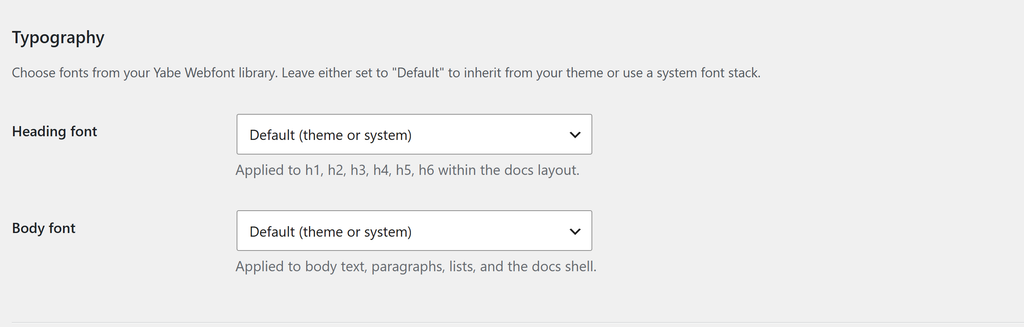
- Settings → Display → Appearance → Typography: the heading and body font dropdowns, listing the fonts in that plugin’s library.
Choosing fonts#
- No font plugin active: the Typography section explains that a font plugin is needed and links to Nahnu Fonts.
- No fonts added yet: you’ll see a note to add a font in the font plugin first.
- Fonts available: choose a heading font and a body font. Leaving either on “Default” inherits your theme’s font or a system font stack.
The font plugin loads the font files; WP Super Docs applies the fonts you pick to the docs headings and text. With Nahnu Fonts, the docs use its --nahnu-font-… CSS variables, and fall back to the font’s own name if those variables are turned off in Nahnu Fonts.
This is particularly useful if you’re running your docs on a subdomain with no active theme at all, since there’d otherwise be no font to inherit from.
Was this helpful?
Thanks for your feedback!
✓ Feedback received. Thank you!