
Open Graph Tags
Open Graph tags control how a link looks when shared on Slack, Twitter/X, LinkedIn, Facebook, and similar platforms. WP Super Docs handles this in two layers: a basic set that’s always on, and an optional, more advanced system you can turn on if you want finer control without installing a full SEO plugin.
The default Open Graph tags (always on)#
Every doc and every page WP Super Docs creates (the docs homepage, product and category pages, the changelogs, the roadmap and feature requests) gets Open Graph and Twitter tags with no setup: a title, a description, the page’s address and a share image.
Share images are new in 1.0.14. A doc uses its featured image. The pages WP Super Docs creates use the images you choose under Settings → SEO → Share images, or a product’s or category’s own image, with a Default image for any page without one. See Share Images.
On a single doc#
These tags are skipped if you have Yoast, Rank Math, Slim SEO, SEOPress, All in One SEO, The SEO Framework or SureRank active, since that plugin prints its own tags for real posts like docs, and having both would duplicate them. They’re also skipped when Built-in SEO Meta (below) is turned on, for the same reason.
An image set for a doc in your SEO plugin always wins. The Default share image only fills in for a doc that has no featured image and no image of its own in the SEO plugin.
On the pages WP Super Docs creates#
These pages have no post behind them, so an SEO plugin doesn’t know their title, address or image on its own. WP Super Docs makes sure each page has exactly one of each tag, with the right values:
| Your site uses | What happens on these pages |
|---|---|
| Slim SEO, The SEO Framework, Yoast SEO or Rank Math | The plugin prints the tags, with the title, description, address and share image from WP Super Docs |
| All in One SEO, SEOPress or SureRank | The plugin’s own share tags are switched off on these pages only, and WP Super Docs prints them |
| No SEO plugin | WP Super Docs prints everything: canonical address, meta description, Open Graph and Twitter tags |
Your SEO plugin keeps working as usual everywhere else on your site.
Built-in SEO Meta (optional, off by default)#
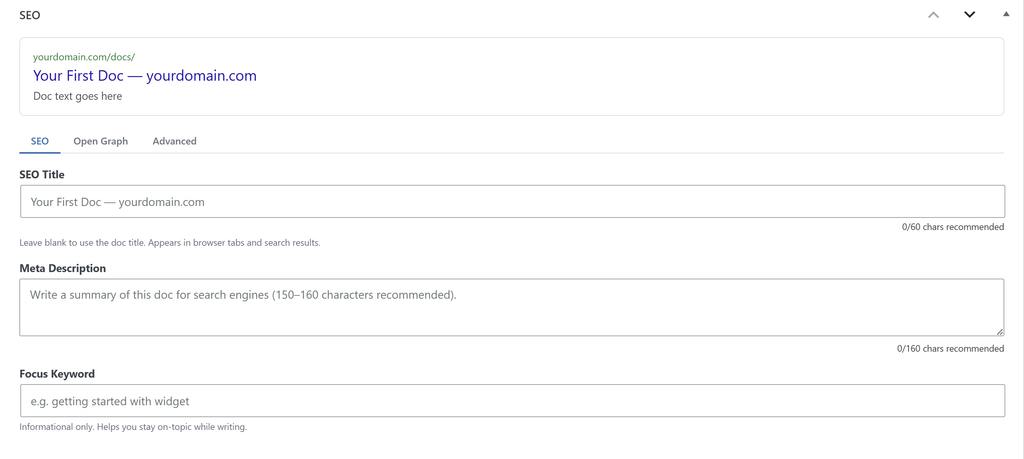
If you’d rather not install a separate SEO plugin at all, WP Super Docs includes a more complete SEO panel you can turn on for every doc. Go to Settings → SEO and turn on Enable built-in SEO meta box on docs.

This adds a panel to every doc’s editor with:
- SEO Title: overrides the browser tab title and search result title.
- Meta Description
- Focus Keyword: informational only, shown for your own reference, doesn’t affect any scoring or ranking.
- OG Title and OG Description: default to the SEO title and meta description above if left blank.
- OG Image: picked from your media library, also used for the Twitter Card image. When it’s empty, the doc’s featured image is used, then the Default share image from Settings → SEO → Share images.
- Canonical URL: override if this doc’s content is also published elsewhere and you want search engines to credit the original.
- noindex and nofollow: per-doc robots controls. Checking noindex also automatically excludes the doc from the docs sitemap.
This automatically pauses if you have a real SEO plugin#
If Yoast, Rank Math, AIOSEO, SEOPress, Slim SEO, The SEO Framework, or SureRank is detected, Built-in SEO Meta’s output pauses automatically, even if you’ve turned it on, to avoid conflicting tags. Your fields stay saved and visible in the editor, they just don’t output anything on the frontend while a real SEO plugin is active. A status line on the settings page tells you exactly which plugin was detected.
If you genuinely want both running at once, an advanced Force on option is available, with an explicit on-screen warning that this will produce duplicate meta tags. This isn’t recommended unless you have a specific reason to need it.
OG images and CDN offload plugins#
If you’re using WP Media Cloud to offload images to a CDN, your og:image now correctly points to the CDN URL instead of a local upload URL, even when EWWW Easy IO is also active.
This matters because WP Media Cloud and EWWW Easy IO can conflict: when both are active, WP Media Cloud turns off its own image-URL rewriting so EWWW Easy IO can rewrite <img> tags on the page instead. EWWW Easy IO only rewrites visible <img> tags though, not <meta property="og:image"> tags, so without this fix, the og:image would be left pointing at a local file instead of the CDN.
This fix applies to:
- The OG image set through Built-in SEO Meta (the panel described above), whenever it’s active.
- The OG image output by Slim SEO, if that’s the SEO plugin you’re using instead.
- Share images from Settings → SEO → Share images and from products and categories.
Other SEO plugins (Yoast, Rank Math, AIOSEO, SEOPress, The SEO Framework, SureRank) handle their own og:image output, which this fix doesn’t touch.
Fixed in 1.0.14#
- The pages WP Super Docs creates could show the same Open Graph and canonical tags twice when an SEO plugin was active.
- The SEO Framework showed “Untitled” as the share title on the docs homepage, and
&in browser tabs for names with an ampersand. - A category page could point its canonical address at another product.
- Pages 2 and later of the changelogs pointed their canonical address at page 1.
- Changelog pages now have their own title, description and share tags.
- Docs with Built-in SEO Meta settings printed two canonical links when no SEO plugin was active, and docs without a description lost their share image.
Was this helpful?
Thanks for your feedback!
✓ Feedback received. Thank you!