
Auto-Generated Navigation vs. Manual Override
The sidebar navigation for each product can be left fully automatic, or you can take manual control of the order using a drag-and-drop builder.
Auto mode (the default)#
With no custom order saved, navigation is built automatically from your docs:
- Docs are grouped by category.
- Within a category, docs are ordered by their Order field (set in Page Attributes when editing a doc), then alphabetically by title for any docs left at the same order.
- Categories appear in the order their first doc appears, following that same doc ordering, not alphabetically by category name, unless you’ve set an explicit category order on the Doc Categories page (see below).
- Docs with no category go into a fallback group labeled “General.”
This is the same order used both in the sidebar and on the product page’s category cards. See The Docs Homepage & Category Cards.
Doc Categories order takes final precedence#
If you’ve set a category order on WP Super Docs → Doc Categories (see The Doc Categories Page), that order wins for category-level placement, applied after everything below, whether you’re in auto mode or have a manual override saved. This only affects the order categories themselves appear in, not the order of docs within a category, that’s still controlled by each doc’s Order field (auto mode) or by dragging within a bucket (manual mode, described below). If you’ve never set an order on the Doc Categories page, nothing changes, categories keep sorting the way described above.
Switching to manual mode#
Go to WP Super Docs → Navigation. If you have more than one product, pick which one you’re editing at the top of the page.

The builder has two columns:
- All docs (left): every doc in this product. Docs already placed into the layout show a “placed” badge.
- Sidebar layout (right): a bucket for every category, including empty ones.
Drag a doc from the left into a category bucket on the right to place it. Drag a doc within a bucket to reorder it. Use the up and down arrows on a bucket’s header to reorder categories relative to each other, this only has an effect if you haven’t set a category order on the Doc Categories page, since that order takes precedence when present (see above).
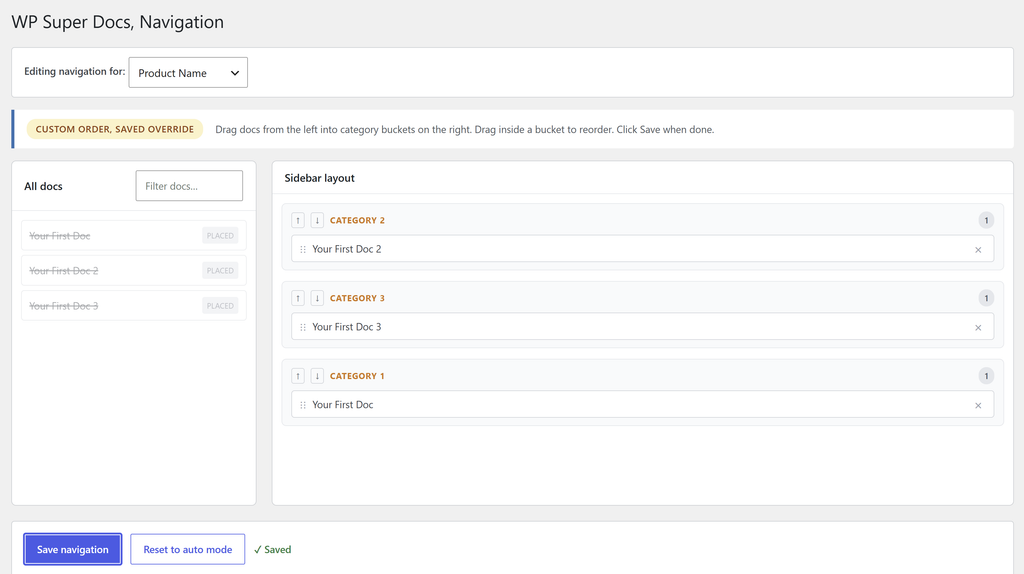
Click Save navigation to store your custom order. The status pill at the top changes from “Auto mode” to “Custom order, saved override.”
Reverting to auto mode#
Click Reset to auto mode. This deletes your saved custom order entirely and goes back to fully automatic ordering. There’s no undo for this beyond rebuilding the custom order from scratch, so use it deliberately.
What happens when a category isn’t in your custom order#
If you’ve saved a custom order but a category doesn’t appear in it (for example, you added the category after setting up your override), that category is automatically appended at the end, using auto-mode ordering, so it’s never hidden.
Important: new docs don’t appear automatically once you’re in manual mode#
Once you’ve saved a custom order, only the docs you’ve explicitly placed into a bucket show up in that category’s sidebar section. If you publish a new doc in that category afterward, it won’t appear in the sidebar until you go back to the Navigation page, find it in the “All docs” list (it won’t have a “placed” badge), and drag it into the right bucket.
This is different from auto mode, where every published doc always shows up automatically. If you’re regularly publishing new docs, keep this in mind, or plan to check the Navigation page after each new doc goes out.
Was this helpful?
Thanks for your feedback!
✓ Feedback received. Thank you!